Module 7 · Excel for Data Analysis
Data cleaning in Excel
Clean a real messy export with TRIM, PROPER, SUBSTITUTE, VALUE, Remove Duplicates, a mapping table and Power Query's locale-aware dates.
About 45 minutes
The problem
Kolanut's customer list, exported from its old system, is a mess: names with stray spaces and random capitals, regions spelled 23 different ways, three date formats, credit limits stored as text with ₦ signs, and 12 customers listed twice. The new system needs a clean list, and finance wants the total credit extended to customers.
The concept
Text functions for cleaning
| Function | Does | Example |
|---|---|---|
TRIM(x) | Removes spaces at the start and end, and repeated spaces inside | " Ada Mart " → "Ada Mart" |
CLEAN(x) | Removes invisible non-printing characters (common in exports) | |
PROPER(x) | Capitalises Each Word | "PEACE MART" → "Peace Mart" |
UPPER(x), LOWER(x) | All capitals / all lower case | |
SUBSTITUTE(x, old, new) | Replaces every old with new | remove ₦: SUBSTITUTE(x,"₦","") |
VALUE(x) | Turns text that looks like a number into a number | "1200000" → 1200000 |
Functions can be nested. A clean credit limit from text like ₦1,200,000.00:
Excel formula
=IFERROR(VALUE(SUBSTITUTE(SUBSTITUTE(TRIM([@[Credit Limit]]),"₦",""),",","")), "")(Inside the brackets of a Table reference, a column name with a space needs its own brackets: [@[Credit Limit]].)
Standardising categories with a mapping table. Don't write a giant nested IF for 23 region spellings. Make a two-column table, RegionMap, with every messy spelling (in lower case) and its clean version, then look it up:
| raw | clean |
|---|---|
| lagos | Lagos |
| sw | South West |
| south-west | South West |
| south west | South West |
| … | … |
Excel formula
=XLOOKUP(LOWER(TRIM([@Region])), RegionMap[raw], RegionMap[clean], "CHECK")Anything that shows CHECK is a spelling you haven't mapped yet.
Remove duplicates (Data → Remove Duplicates) deletes rows that repeat in the columns you choose. Excel ignores capital letters when comparing, but not spaces, so trim first.
Dates: the trap. The export mixes 2023-07-11, 22/10/2023 and 5-Mar-2024. On a computer set to US format, Excel reads 01/09/2022 as 9 January and leaves 22/10/2023 as text, because there is no 22nd month. Half your dates are wrong and the other half aren't dates. The reliable fix is to import through Power Query and tell it the dates are day-first:
- Data → From Text/CSV → choose the file → Transform Data.
- Right-click the Date Joined column → Change Type → Using Locale…
- Data type Date, locale English (United Kingdom) (day-first), OK.
- Home → Close & Load.
Check a few rows against the raw file afterwards: 01/09/2022 should now be 1 September 2022.
Import it properly first. Opened with Data → From Text/CSV, the messy file comes in far better than by double-clicking:
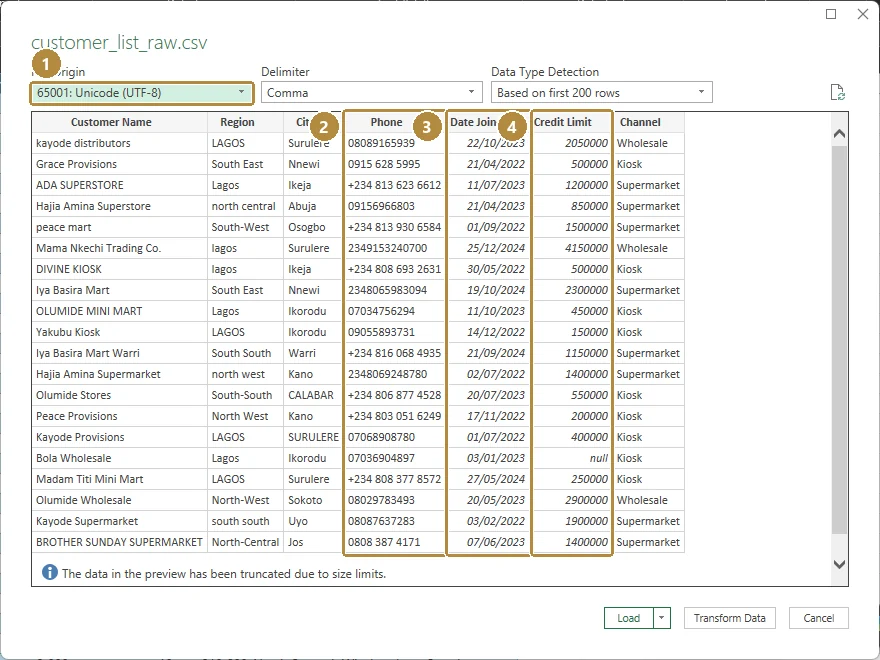
- File Origin: 65001 Unicode (UTF-8), so
₦is read correctly. - Phone stays as text, leading zeros intact.
- Date Joined is recognised as dates. It read them day-first because this computer uses a UK date format. On a US-format computer, change the type with a locale in Power Query, as described above.
- Credit Limit is recognised as numbers; the blank one shows as
null.
Import gives the cleanest starting point, but names, regions and duplicates still need fixing, and that's what the formulas below do.
Example
| Raw | Clean |
|---|---|
kayode distributors · LAGOS · 22/10/2023 · ₦2,050,000 | Kayode Distributors · Lagos · 22 Oct 2023 · 2,050,000 |
ADA SUPERSTORE · Lagos · 2023-07-11 · 1,200,000 | Ada Superstore · Lagos · 11 Jul 2023 · 1,200,000 |
Hajia Amina Superstore · north central · 21/04/2023 · 850000 | Hajia Amina Superstore · North Central · 21 Apr 2023 · 850,000 |
Walkthrough
A clean, repeatable workflow:
Keep the raw sheet untouched. Load the file (with the Power Query date fix above) into a sheet called
Raw.Add helper columns next to the data, one per cleaned field:
Name:=PROPER(TRIM(CLEAN([@[Customer Name]])))Region clean: the XLOOKUP onRegionMapLimit: the nested SUBSTITUTE/VALUE formula Here are the helper columns on Kolanut's export, next to the raw data:
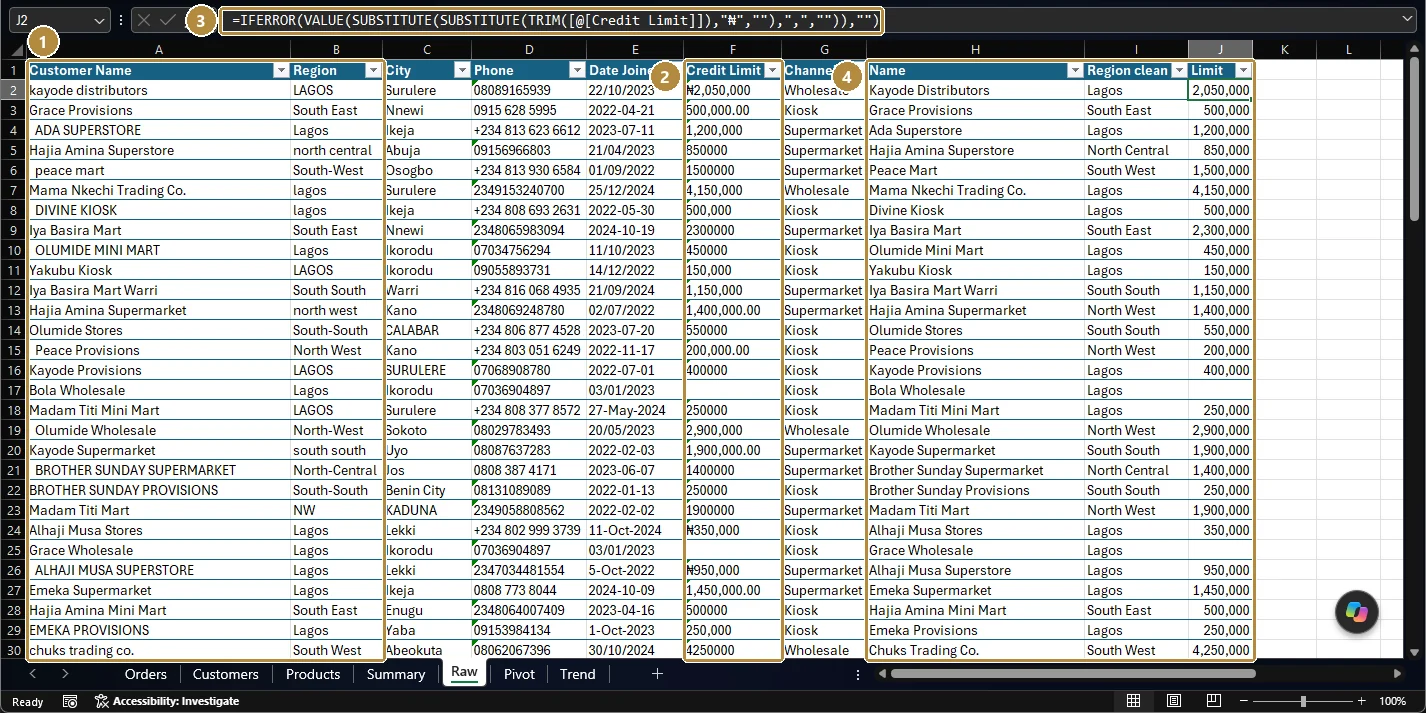
Raw columns (1, 2) and their cleaned versions (4), built by formulas like the one in the formula bar (3).Tap the image to see it full size. Filter each helper column for
CHECK, errors and blanks, and fix the mapping until none are left.Copy the helper columns and paste them into a new sheet
Cleanwith Paste Special → Values (Ctrl + Alt + V, then V). They're now fixed values, not formulas.On
Clean, Data → Remove Duplicates (Alt, A, M) on the name column: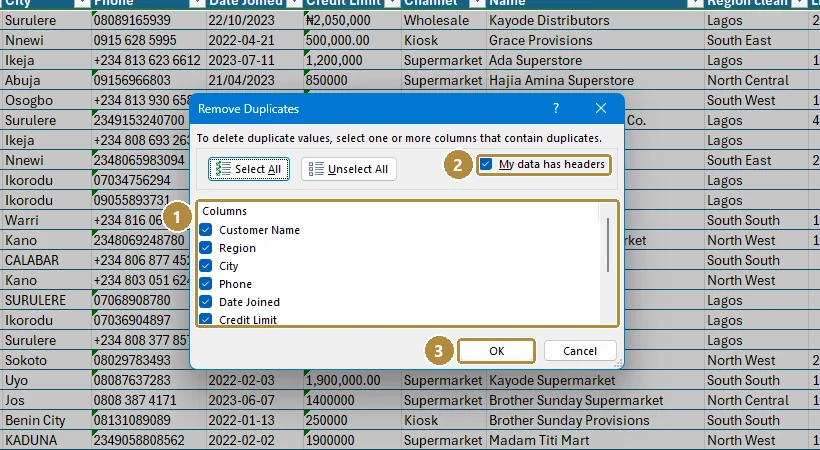
Remove Duplicates. Tick only the columns that define a duplicate (1): here, just the cleaned name.Tap the image to see it full size. - Columns: untick everything except the cleaned name. With every column ticked, two copies count as duplicates only if every column matches, and these copies have different phone formats.
- My data has headers keeps the header row out of the comparison.
- OK reports how many duplicates were removed (12 here) and how many unique rows remain (90).
Log it: on a
Notessheet, write what you did and the row counts before and after (102 → 90).
Practice
Practice
Before any cleaning, how many rows of the raw export have a blank Credit Limit?
Practice
After trimming, standardising regions and removing duplicates, how many customers are in the Lagos region?
Practice
After fixing the dates (day first) and removing duplicates, how many customers joined in the first half of 2024 (1 January to 30 June 2024)?
Challenge
Challenge · optional
What is the total credit limit of the cleaned, de-duplicated customers, counting only customers whose limit is known? Where a customer appears twice and only one copy has a limit, keep the copy with the limit.
Check your understanding
Answer every question to check.